Create Pipeline (Jenkinsfile)
In this tutorial, I explain: - How to create a Pipeline job in Jenkins - Where to reference the Jenkinsfile from - Difference between inline script vs Jenkinsfile from SCM - How Jenkins reads and executes the Jenkinsfile - How to trigger and validate the pipeline run
Create a GitHub repository with a sample Java Maven project How to create a GitHub repository and push a sample Java 21 Maven Project
Jenkinsfile is a file, where you can write all the build commands and store the file in the GitHub repository, then Jenkins Pipeline can reference it to execute the commands
Difference: Inline Script vs Pipeline from SCM
In the previous tutorial, we used Pipeline Script (Inline), where the code is pasted directly into Jenkins UI. In this tutorial, we use Pipeline Script from SCM, where Jenkins reads the Jenkinsfile from a Git repository.
| Feature | Inline Script | Pipeline from SCM |
|---|---|---|
| Location | Stored in Jenkins Job Config | Stored in Git Repository |
| Versioning | No version control | Versioned with App Code |
| Collaboration | Hard to review changes | Easy via Pull Requests |
| Best For | Quick testing / Experiments | Production Pipelines |
Create a Jenkinsfile named 01-Jenkinsfile-helloworld inside cicd
The Jenkinsfile can be named to anything like this Jenkinsfile-dev, 01-Jenkinsfile-helloworld
mkdir cicd
ls -l
cd cicd
vi 01-Jenkinsfile-helloworld
ls -l
pipeline {
  agent any
  stages {
    stage ('Build') {
      steps {
        sh 'echo Hello Build stage'
      }
    }
    stage ('Test') {
      steps {
        sh 'echo hello Test stage'
      }
    }
  }
}
Reference: Pipeline Syntax
vignesh ~/code/devopspilot1/hello-world-java [main] $ ll
total 16
-rw-r--r-- 1 vignesh  staff   762 Jul 12 22:56 README.md
-rw-r--r-- 1 vignesh  staff  1414 Jul 12 22:56 pom.xml
drwxr-xr-x  4 vignesh  staff   128 Jul 12 22:56 src
vignesh ~/code/devopspilot1/hello-world-java [main] $ mkdir cicd
vignesh ~/code/devopspilot1/hello-world-java [main] $ ls -l
total 24
-rw-r--r-- 1 vignesh  staff   210 Jul 15 19:31 01-Jenkinsfile-helloworld
-rw-r--r-- 1 vignesh  staff   762 Jul 12 22:56 README.md
drwxr-xr-x  2 vignesh  staff    64 Jul 15 19:32 cicd
-rw-r--r-- 1 vignesh  staff  1414 Jul 12 22:56 pom.xml
drwxr-xr-x  4 vignesh  staff   128 Jul 12 22:56 src
vignesh ~/code/devopspilot1/hello-world-java [main] $ cd cicd
vignesh ~/code/devopspilot1/hello-world-java/cicd [main] $ vi 01-Jenkinsfile-helloworld
vignesh ~/code/devopspilot1/hello-world-java/cicd [main] $ ls -l
total 8
-rw-r--r-- 1 vignesh  staff  210 Jul 15 19:34 01-Jenkinsfile-helloworld
Check Git status
cd ..
git status
vignesh ~/code/devopspilot1/hello-world-java/cicd [main] $ cd ..
vignesh ~/code/devopspilot1/hello-world-java [main] $ git status
On branch main
Your branch is up to date with 'origin/main'.

Untracked files:
  (use "git add <file>..." to include in what will be committed)
    cicd/

nothing added to commit but untracked files present (use "git add" to track)
Add the file and push it to the GitHub repository
git add .
git status
git commit -m "Added Jenkinsfile 01-Jenkinsfile-helloworld"
git push origin main
vignesh ~/code/devopspilot1/hello-world-java [main] $ git add .
vignesh ~/code/devopspilot1/hello-world-java [main] $ git status
On branch main
Your branch is up to date with 'origin/main'.

Changes to be committed:
  (use "git restore --staged <file>..." to unstage)
    new file:   cicd/01-Jenkinsfile-helloworld
vignesh ~/code/devopspilot1/hello-world-java [main] $ git commit -m "Added Jenkinsfile 01-Jenkinsfile-helloworld"
[main c548f08] Added Jenkinsfile 01-Jenkinsfile-helloworld
 1 file changed, 15 insertions(+)
 create mode 100644 cicd/01-Jenkinsfile-helloworld
vignesh ~/code/devopspilot1/hello-world-java [main] $ git push origin main
Enumerating objects: 5, done.
Counting objects: 100% (5/5), done.
Delta compression using up to 10 threads
Compressing objects: 100% (4/4), done.
Writing objects: 100% (4/4), 455 bytes | 455.00 KiB/s, done.
Total 4 (delta 1), reused 0 (delta 0), pack-reused 0
remote: Resolving deltas: 100% (1/1), completed with 1 local object.
To https://github.com/devopspilot1/hello-world-java.git
   27d7fcb..c548f08  main -> main
Verify cicd/01-Jenkinsfile-helloworld file is pushed to the GitHub repository
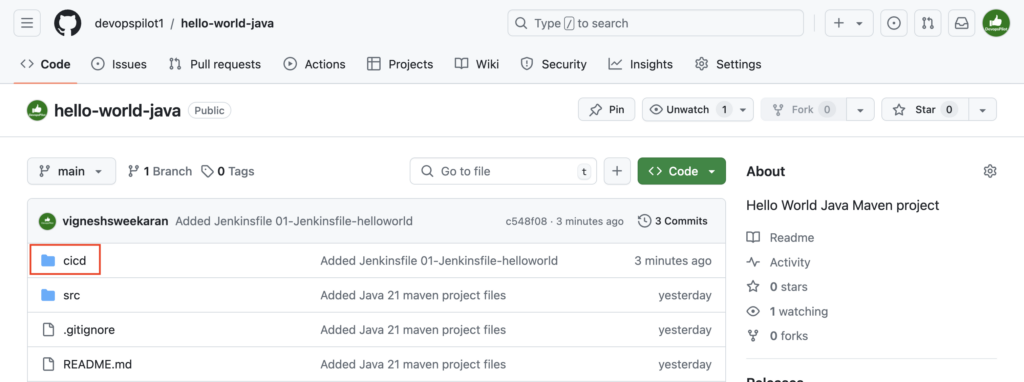
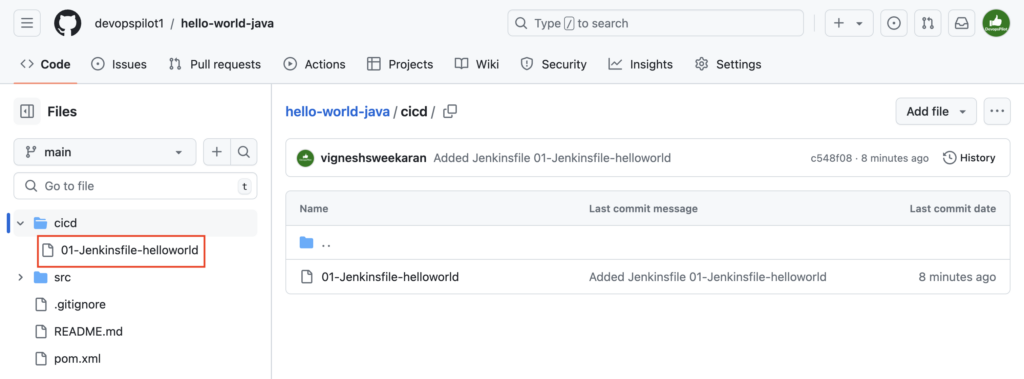
Goto Jenkins dashboard, click on New Item
Enter the Pipeline name 01-hello-world-java, select Pipeline, and then click OK
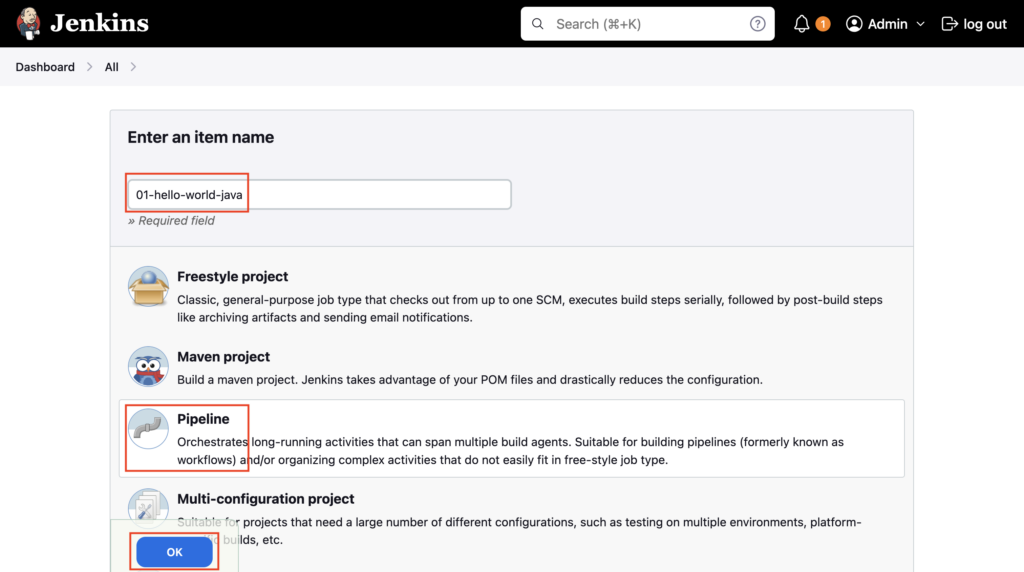
Select the Pipeline section, under Definition choose Pipeline script from SCM
From SCM choose Git and enter your GitHub repository URL
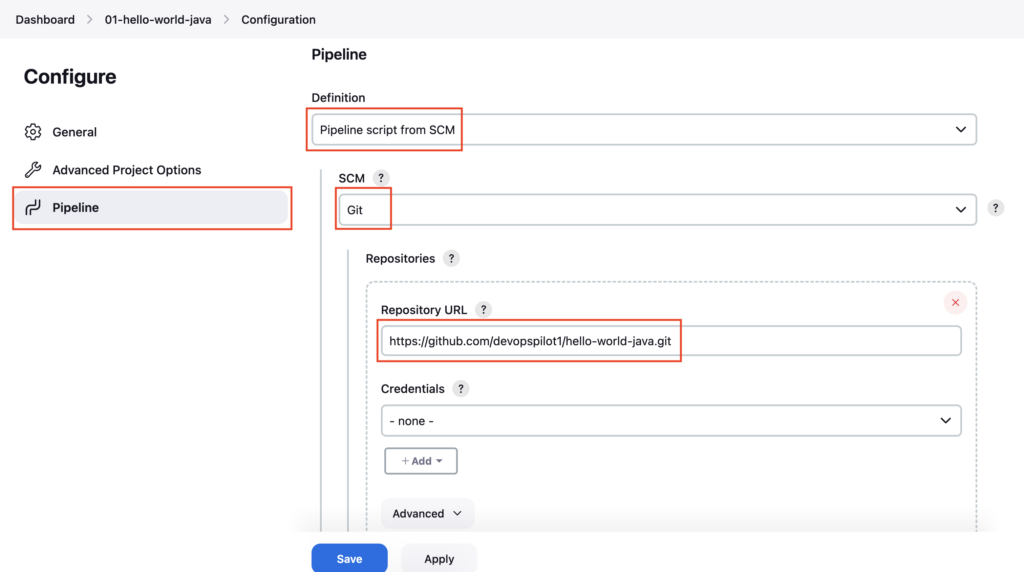
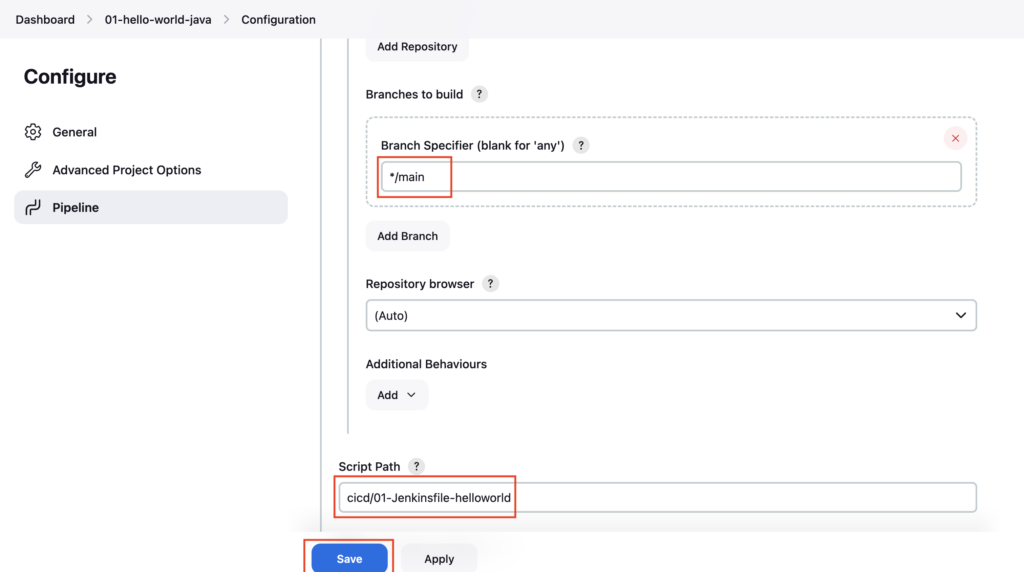
Under Branch Specifier change the branch name to main
Under Script Path enter the Jenkfinsfile path cicd/01-Jenkinsfile-helloworld and click on Save
Click on Build Now
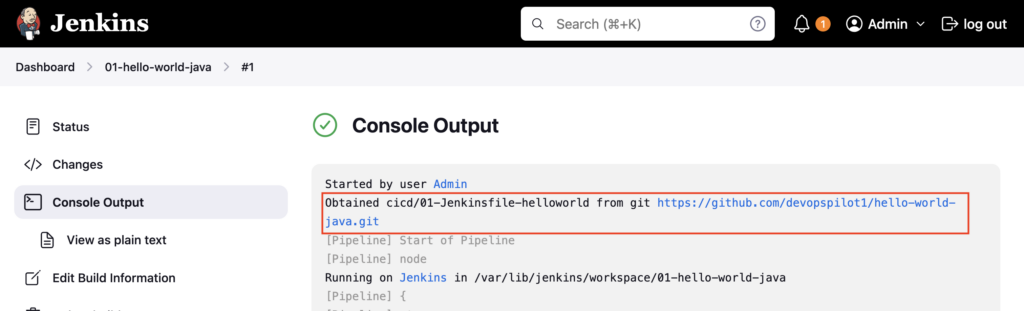
Goto Console Output, first it obtained the Jenkinsfile cicd/01-Jenkinsfile-helloworld from the GitHub repository, then clones the GitHub Repository and executed the commands defined in the stages
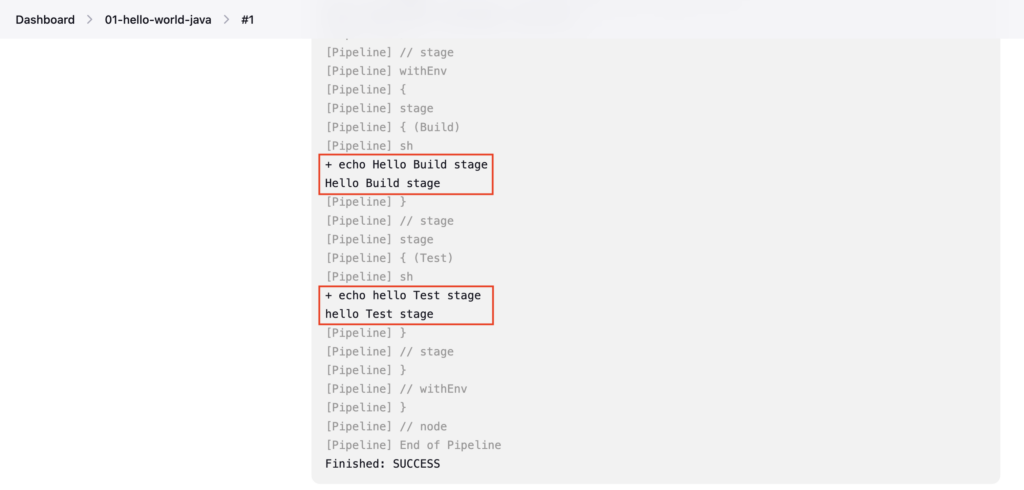
In Jenkinsfile you had 2 stages Build and Test, in both the stages it executes the sh step to execute the echo commands
How Jenkins Reads and Executes
When you clicked Build Now:
1. Jenkins connected to the Git URL provided.
2. It searched for the file path cicd/01-Jenkinsfile-helloworld.
3. It read the file contents.
4. It recognized the pipeline { ... } syntax.
5. It then executed the stages sequentially (Build -> Test).
Important Tips
Tip
Single Source of Truth: Storing the pipeline in SCM means your build logic is versioned alongside your application code. This allows you to roll back build logic just like you roll back code changes.
Important
Branching: When using "Pipeline script from SCM", Jenkins will check out the specific branch you configured. If you are using Multibranch Pipelines (advanced), Jenkins can automatically discover Jenkinsfiles in all branches.
🧠 Quick Quiz — Pipeline from SCM
What does "Pipeline script from SCM" allow you to do?